Outlook Rules
The TO field is for action, the CC field is not.

I was talking with a colleague today, and we were swapping stories about drowning in email. About how you would go through an inbox and mark something as flagged or mark it unread, and then everything would be a sea of flags. Of course, you still wouldn’t read everything, and just get overwhelmed, because there’d be no way of sorting or prioritizing any of it. Very often what happens is you’ll declare email bankruptcy, select all your flagged and unread email, clear the flag and mark ‘em all read. Archive everything to hide your shame. Not exactly an effective strategy.
That got me thinking about my setup and what I was experiencing before I sorted out the email triage thing. I avoid message flagging as much as I possibly can because I know that I won’t ever clear the flag.
I get a lot of email and I’ve been toying with different Outlook rules over the years to help with the triage. One of my favorite Microsofties, Scott Hanselman, wrote a blog post almost a decade ago talking about taming the Outlook firehose. And one of his big rules was to automatically move email that you’re CC’d on to another folder and get it out of your inbox. The TO field is for action, the CC field is not.
Things went to hell when Classic Outlook got the boot and New Outlook hit the scene. Classic Outlook had a lot more mechanics and things you could do with rules. People built quite the contraption of rules with the old MAPI client. I was one of those people.
I prefer the New Outlook because I find it faster and search works better. While it doesn’t have feature parity with Classic, for all the things I care about, it is a superior experience.
One of the things I’ve learned over the years is that filing email into folders was never going to be the answer, because stuff generally belongs in more than one folder. Best of luck which folder choice won the pick-decision three months ago.
In short, bucketing the email by its content doesn’t work. Setting up email rules based on its send/receive profile does.
So, I’ll run you through my rules, top to bottom. The order matters.
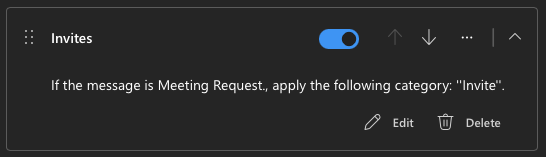
First and foremost, you got to go and deal with your meeting invitations and stuff like that. One of the things I like to do is actually just to make a category called Invite and tag incoming mail based on its item type. You can make a search folder that looks for the category and pin that to your Favorites in the sidebar.
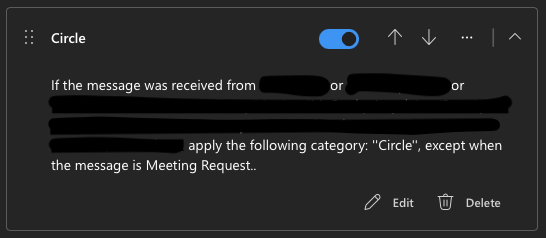
The next rule that you make is the Big Override. There’s usually a bunch of folks in your orbit. Your peeps who work directly for you. Colleagues who are your direct peers. Managers and leaders up the chain from you. And your direct manager’s peers. This is what amounts to being your Circle of Trust, if you will. Create a rule that sets the category. Call it whatever. I use Circle.
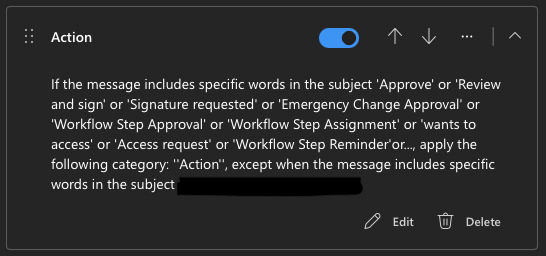
Your next rule will be to tag all of the emails that you know are actionable. You can’t always count on them being actionable by sender, but you can usually bank on the subject line. Give these a tag called Action. You’ll probably want to make exceptions depending on your sitch. So those are the categorization rules.
The next set of rules are going to be around moving email into folders. Pay attention to the categories above. You’ll see why I bothered.
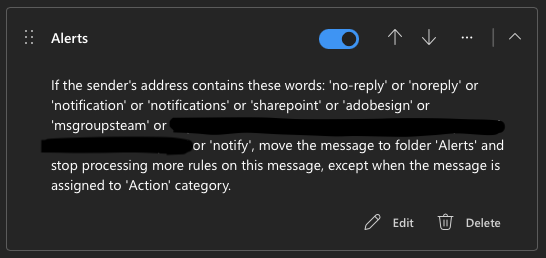
So the next rule we’re talking about here is to deal with the alerts. And this rule basically says: if the email is from these senders, move them to a folder you create called Alerts. Add an exception, if it’s categorized Action. This moves application-generated noise to a folder out of your inbox except for the stuff that you actually need to do something with.
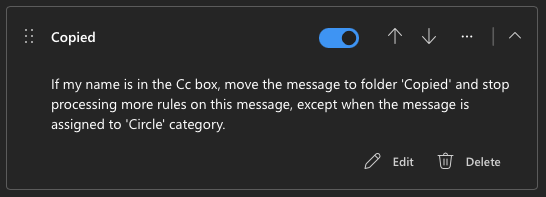
The very next rule is the money one. It will be to deal with the email that you’re only copied on. The rule moves the message to the Copied folder unless the message is a member of your Circle. That’s it. It shuffles a bunch of stuff that you’re not on the TO field out of your inbox unless it happens to be from one of your peeps.
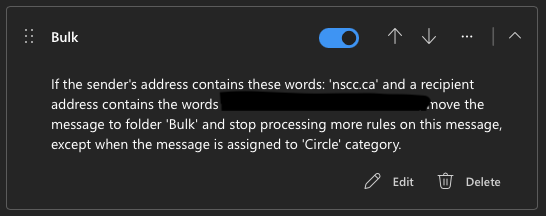
The next rule is one to move all of the friendly low-priority bulk mail out of your inbox. And it’s really simple. If the sender contains your email domain, it’s internal email. And then you’ll pick the distribution lists or anything that’s common to their distribution lists. One element that’s common to ours is a hashtag symbol at the start of the recipient address. Make an exception for the Circle, and send everything else to a Bulk folder. I think of this as my “ham” folder, the more palatable cousin of “spam”.
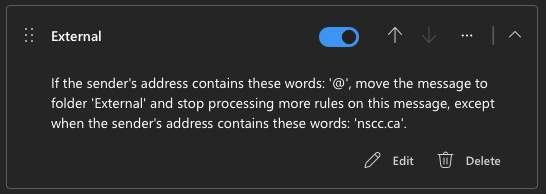
The last rule in this sequence is optional. You might not need or even want this. In my role, about two thirds of my email is internally generated so I use this one, but you don’t have to. Essentially, if the sender’s address contains an @ symbol, move the message to a folder called External. Except if the sender’s address contains nscc.ca (internal). Plain and simple.
Those are my rules in a nutshell that gets the job done. The workflow looks like this:
- I have a couple search folders. One that shows
Invites. One that shows myActionitems. I mark them as favorites in Outlook so when I glance, I can see when I get a new meeting invite or when there’s something that requires action from me. - My inbox is only email from internal folk that is sent directly to me or from senders I prioritize. I think of my inbox as important people trying to get a hold of me directly. I keep a close eye on this folder.
- I’ll look at the
Externalfolder often as well as these are often email that’s sent directly to me. But it’s from vendors or from partners or from other external folks that I actually care about the relationship. - The
Alertsfolder is full of stuff that machines want me to pay attention to, not people. I rummage there only when I’m looking for something in particular. - I check the
Copiedfolder about once a day, because if I’m copied on something, it’s informational only and not for me to respond with any urgency. - If somebody has CC’d me on an email expecting me to respond right away, they’ve misused the tool. I will subtly correct them if they ask. It’s perfectly fine to subtly coach people with how you prefer to be communicated. Outlook makes it dead-easy by putting @mentions on the TO field automagically.
- Maybe every couple of days, I’ll look at the
Bulkfolder and enjoy all the kittens-for-sale emails, the cafeteria menu updates, and their ilk.
Of course, the real hack is to not have your Outlook open all the time anyway, and only open it a couple times a day. These rules all run in the cloud so you don’t have to babysit your inbox.
And to be real with y’all, and I’ve said this before, very few job descriptions list being a superstar with email as a critical job duty. You were probably hired to do some other human stuff.
Good rules is good defense. Now, get back to work.