The App Apocalypse Starter Kit
Obsidian works everywhere. Install it. Right now.

I have always preferred plain text.
Back in the early 90s, I used BBSs all the time, so I was pretty used to writing and reading in plain text, long before Markdown had the formal conventions for structuring text and adding styling. I adopted what was there already, the asterisks to indicate italics, stuff like that. Anybody can do this now.
Early in my IT career, I always felt stuck and trapped in an application’s ecosystem. WordPerfect was the darling-doe for a spell and three or four years felt like forever at the time. But I knew in my heart of hearts that it was a house of cards.
File format choice is almost as important as the argument people make for physical books: what happens if all the computers die? Well, what happens when the paper rots? I’d take plain text markdown and printed media as almost two sides of the same coin. It’s about true ownership over what matters.
As it turns out, plain text markdown is the preferred format for agent ingestion. But even if AI didn’t exist, even if this kind of ingestion wasn’t important, plain text has always been what’s going to save my arse and make sure I survive the app apocalypse.
You throw a Word document into Claude and it’s got to convert it to markdown before it can do anything. If your content is already sitting in markdown, it burns fewer tokens getting the job done. At some point we’re going to care a lot more about the inference cost of our tools once the AI companies stop sponsoring everybody’s habit formation.
Here’s a good way to think about it. You can consider plain text and markdown as true editable “source code” for your content, and then you “compile” the markdown document into a format like Microsoft Word, PowerPoint, PDF, even an EPUB. Whatever.
Okay. So you basically have file folders, and in those file folders, you have text files conforming to some sort of naming convention. What you really need is a way to browse the files and work with them.
There’s two big contenders that come to mind. One of which is Obsidian, and the other one is VS Code. Both have the same kind of paradigm. On the left, they have a tree view to navigate your files and folders, and then on the right-hand side, you open one or more files in editing panes. VS Code is geared for coding and Obsidian is more about note-taking. It’s a matter of taste and both are free. Obsidian happens to be Canadian, if that matters to you, and it makes markdown-formatted files more presentable, so it doesn’t feel like you’re sitting there as Hackerman.
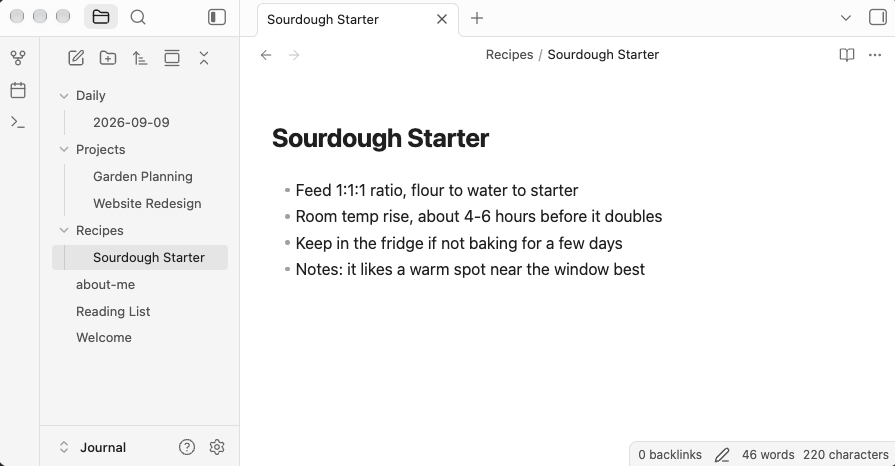
Obsidian works everywhere. Install it. Right now. I’ll wait. Good. When you open it up, it’s going to ask you to create a vault, or open a folder as a vault. You can point it at any file folder that’s on your system.
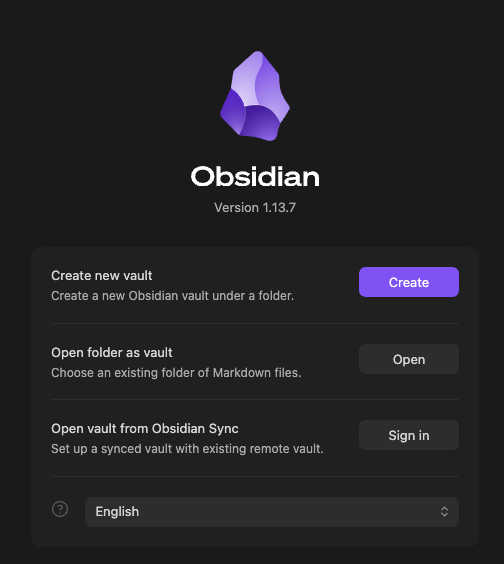
If you’re the kind who needs something that syncs your files around, like OneDrive or Dropbox or even iCloud Drive, you can store the Obsidian vault in any of those locations. Go for it. Make a dedicated folder for this and only open your vault on one device at a time, you monster.
If you’re using an iPhone and you happen to have a Mac, just go ahead and use iCloud. Set it up on the phone first and it just works. If you want to sync to your Android or Windows, there are a couple free options that work with OneDrive and Dropbox. If you’re keen to support the developers and pay for their Obsidian Sync service, it works on everything without any fuss for four bucks a month.
Don’t make the same mistake everyone makes with paper journals and pre-organize yourself to death. Just create new files as they come up. You can always organize them later, because they’re just text files. Create folders only when you need to create a folder.
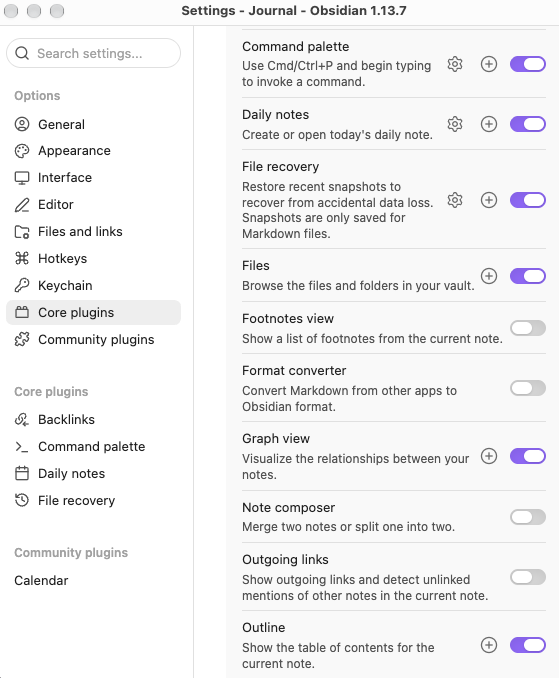
Obsidian has a kitchen sink full of doodads and whatsits. If you want the minimum, so that you’re not getting distracted, stick with the default theme and the core plugins and don’t get fancy.
But if you’re going to use the Daily Note plugin, you might want to use Liam Cain’s Calendar plugin from the community. That’s it though. Stop fiddling with it.
If you’re looking for an idea of what file to create first, create yourself an about-me file, a file that you would put all of the information about yourself in, how you like to work, how you like to think, and how you like to see things formatted. Put in what’s important to you, what’s not important to you, your priorities. Just a bit of a brain dump. Organize it in bullets if you must.
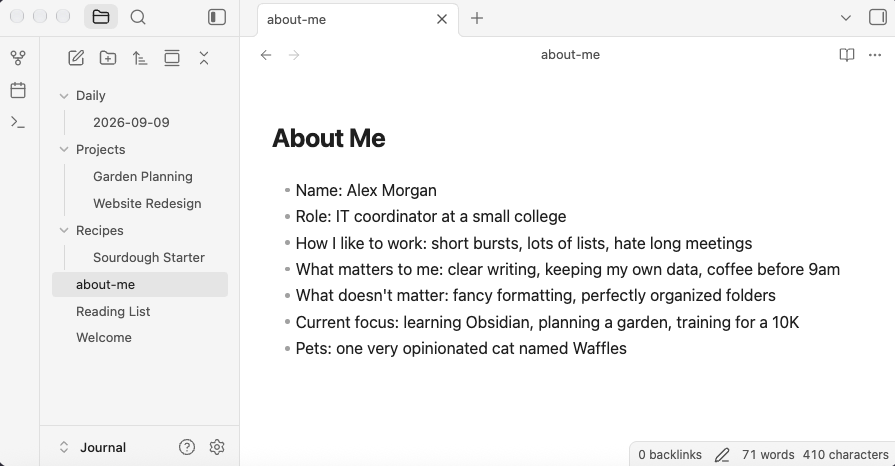
Because: at some point you might want to point an agent at your vault like Claude Code / Cowork or ChatGPT Work / Codex or whatever is in vogue next month. This is the whole “second brain” thing. One of the first things that it will need is the context about you. Even if you just refer to it yourself, it’s a way of grounding. You get to say: hey, this is the space, this is what it’s for, and this is who I am, and this is what I expect.
After your about-me file, your next best choice is the daily note. Just click the daily note button and it opens up a note with today’s date on it. Dump whatever’s on your mind any way you like. I like to dictate this on my phone. That’s my jam.
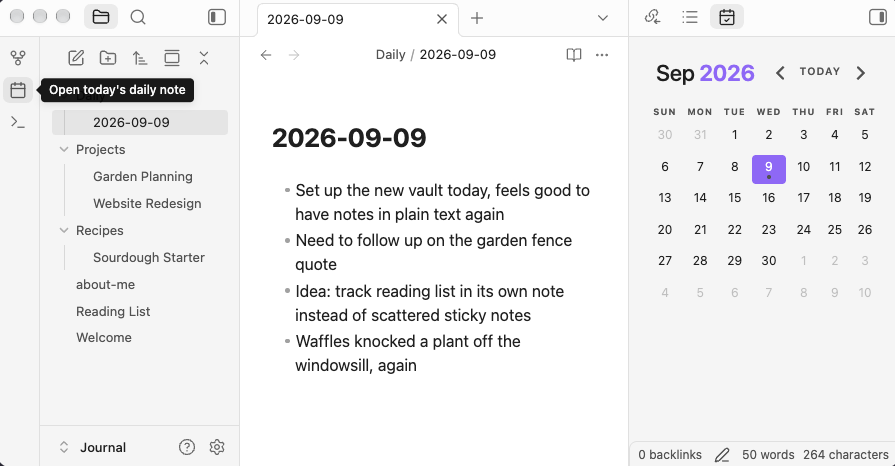
You can organize your notes in folders if you like, or tag them in the properties, or use the built-in linking like Wikipedia. Or nothing or all of it. Just resist building the structure ahead of time. Trust me.
Who is this for? Well, anybody. If you work with a bunch of text, and you want to break away from Word to write. Maybe you just want your notes to be AI-ready or at least future-proof. Your ideas don’t have to be rough any more than they have to be polished darlings. You can write in bullet points or prose or mix and match. It doesn’t matter, because when it comes to working in plain text, you’re not worried so much about the formatting. You’re focused on the words themselves and the story you’re telling.